
Ponsel yang menampung pekerjaan Anda, nomor WhatsApp kedua, Instagram pribadi, finsta, APK mencurigakan dari Telegram, dan aplikasi perbankan layak memiliki cara untuk menjaga dunia-dunia itu tetap terpisah. Aplikasi kloner Android membuat ini mungkin dalam dua bentuk berbeda: alat instansi ganda yang menjalankan dua salinan aplikasi yang sama berdampingan, dan alat isolasi yang menempatkan aplikasi tidak terpercaya di balik dinding profil kerja sehingga mereka tidak dapat membaca kontak Anda, melihat lokasi, atau berkomunikasi dengan akun nyata Anda.
Kami menguji tujuh aplikasi kloner Android terbaik di 2026. Masing-masing dinilai pada seberapa bersih ia menduplikasi aplikasi, isolasi izin apa yang benar-benar diterapkannya, apakah bertahan dari pembaruan Android, dan berapa biayanya ketika tingkat gratis mencapai batas.
Apa yang harus dicari dalam aplikasi kloner Android
Kategori ini memiliki dua kubu, dan kesenjangan di antara mereka lebih penting daripada daftar fitur apa pun.
- Duplikasi atau isolasi. Aplikasi instansi ganda menjalankan salinan kedua yang berbagi data, kontak, dan penyimpanan Anda. Aplikasi profil kerja membuat wadah tertutup yang tidak dapat diintip oleh aplikasi asli. Pilih model yang sesuai dengan apa yang sebenarnya Anda coba lakukan.
- Penyambungan izin. Alat terkuat merutekan notifikasi, lokasi, kamera, dan permintaan penyimpanan melalui lapisan izin mereka sendiri. Yang lebih lemah hanya melewati semuanya ke Android.
- Kelangsungan pembaruan. Beberapa klon rusak saat aplikasi host diperbarui. Cari pengembangan aktif pada tahun 2025-2026, bukan tanggal pembaruan terakhir 2021.
- Iklan, pelacak, dan persyaratan akun. Beberapa aplikasi ruang ganda gratis menampilkan iklan saat setiap peluncuran dan menggabungkan SDK yang mengekspor data perangkat. Pilihan sumber terbuka di bawah menghindari keduanya.
- Kompatibilitas dengan aplikasi perbankan dan DRM. Banyak aplikasi keuangan menolak untuk diluncurkan di dalam klon untuk alasan perlindungan penipuan. Jika Anda membutuhkan WhatsApp Business kedua tetapi tidak aplikasi bank duplikat, itu baik-baik saja. Jika tidak, pertimbangkan.
- Biaya penyimpanan. Setiap klon menjalankan salinan aplikasi dan datanya sendiri. Dua aplikasi berat dapat dengan mudah memakan 1-2 GB.
Perbandingan cepat
| Aplikasi | Terbaik untuk | Paket gratis | Tingkat berbayar | Sumber terbuka |
|---|---|---|---|---|
| Parallel Space | Alat ruang ganda paling populer | Ya, didukung iklan | Pro menghapus iklan | Tidak |
| Dual Space | Dukungan 64-bit ringan | Ya, didukung iklan | Tingkat Pro | Tidak |
| 2Accounts | WhatsApp / Telegram ganda bersih | Ya, didukung iklan | Pro menghapus iklan | Tidak |
| Multi Parallel | Hingga 99 klon | Ya, didukung iklan | Tingkat Pro | Tidak |
| App Cloner | Kustomisasi per klon | Gratis untuk satu klon | Premium sekali | Tidak |
| Island | Isolasi profil kerja nyata | Ya | Gratis | Ya |
| Shelter | Sandbox profil kerja FOSS | Ya | Gratis | Ya |
7 aplikasi kloner Android terbaik di 2026
1. Parallel Space – terbaik untuk dua akun pada satu aplikasi
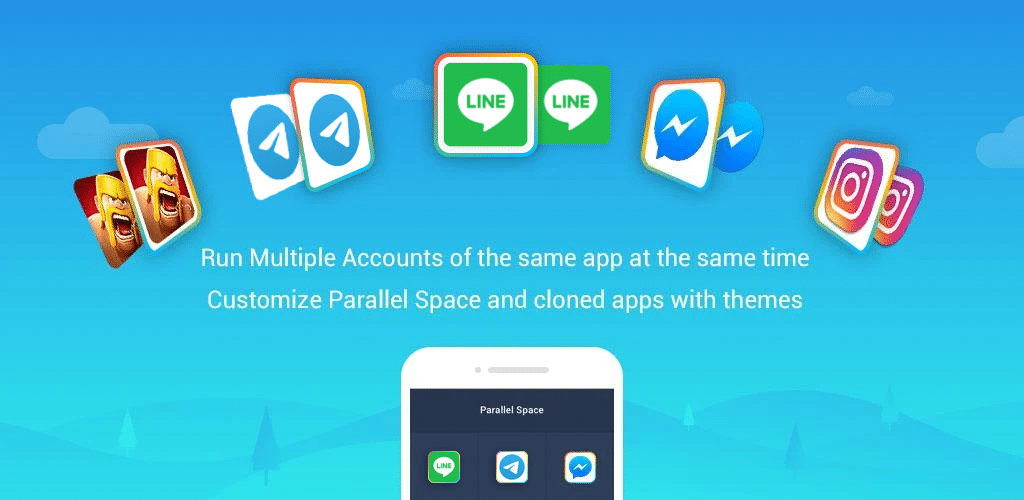
Parallel Space tetap menjadi aplikasi ruang ganda yang paling banyak dipasang di Android di 2026, dengan lebih dari 100 juta unduhan di Aptoide dan Google Play secara keseluruhan. Tambahkan WhatsApp, Instagram, Facebook, Telegram, atau game apa pun, dan Parallel Space meluncurkan instansi kedua dengan login dan notifikasi sendiri. Modul 64-bit membuatnya bekerja pada versi Android yang lebih baru di mana banyak kloner putus.
Di mana ia kurang: Tingkat gratis menampilkan iklan pada setiap peluncuran aplikasi di dalam Parallel Space, dan SDK telah dikritik karena mengumpulkan data perangkat. Beberapa aplikasi perbankan mendeteksi lingkungan paralel dan menolak untuk memulai.
Harga:
- Gratis: Klon tak terbatas, didukung iklan.
- Pro: Menghapus iklan, beberapa tema kosmetik, upgrade sekali.
Platform: Hanya Android.
Intinya: Gunakan Parallel Space jika Anda menginginkan jalur tercepat ke WhatsApp kedua atau Instagram duplikat dan Anda tidak menjalankan aplikasi perbankan di dalamnya.
2. Dual Space – terbaik untuk ponsel lama dan instalasi lebih ringan
Dual Space adalah pesaing berlangsung untuk Parallel Space, dan pada ponsel 64-bit cenderung menggunakan RAM lebih sedikit dari alternatifnya. Antarmuka sederhana (kisi aplikasi kloning Anda), mendukung hampir setiap aplikasi Play Store, dan notifikasi dari aplikasi kloning mencakup lencana kecil sehingga Anda tahu salinan mana yang dimulai.
Di mana ia kurang: Iklan agresif pada tingkat gratis dan upsell dalam aplikasi untuk fitur “boost” terakumulasi. Seperti alat ruang ganda mana pun, game anti-curang akan mendeteksi lingkungan virtual dan melarang akun.
Harga:
- Gratis: Klon tak terbatas dengan iklan.
- Pro: Pembayaran sekali untuk menghapus iklan dan membuka tema.
Platform: Hanya Android.
Intinya: Dual Space adalah kloner paling sederhana jika Anda memiliki ponsel lama atau RAM rendah dan Anda sebagian besar membutuhkan akun pesan kedua.
3. 2Accounts – terbaik untuk duplikasi aplikasi pesan
2Accounts dari Excelliance dibangun di sekitar kasus penggunaan yang paling umum: menjalankan dua WhatsApps, dua Telegrams, atau dua Messengers di ponsel yang sama. Pengaturan dua ketukan per aplikasi, salinan kedua menggunakan ikon berbeda di layar beranda Anda, dan notifikasi tetap dirutekan dengan benar ke akun yang tepat.
Di mana ia kurang: Daftar aplikasi di dalam 2Accounts telah dipilih sebelumnya. Apa pun di luar daftar mereka memerlukan langkah tambahan untuk ditambahkan, dan segelintir aplikasi sistem tidak dapat diklon sama sekali.
Harga:
- Gratis: Dua aplikasi kloning, iklan.
- Pro: Menghapus iklan dan mengangkat batas. Biaya sekali.
Platform: Hanya Android.
Intinya: Pilih 2Accounts jika Anda hanya perlu mengklon aplikasi pesan dan Anda menginginkan pengaturan paling ramah.
4. Multi Parallel – terbaik untuk menjalankan lebih dari dua salinan
Multi Parallel secara diam-diam mendukung hingga 99 klon aplikasi yang sama, yang berlebihan untuk hampir semua orang tetapi penting jika Anda menjalankan media sosial untuk klien, mengelola beberapa akun game, atau memelihara akun pengujian untuk aplikasi yang Anda bangun. Setiap klon mendapatkan data, sesi login, dan aliran notifikasi sendiri.
Di mana ia kurang: Stabilitas menurun setelah Anda melewati empat atau lima klon aktif pada ponsel kelas menengah. Tingkat gratis menyisipkan iklan layar penuh setiap beberapa peluncuran.
Harga:
- Gratis: Klon tak terbatas dengan iklan.
- Pro: Upgrade sekali untuk menghapus iklan.
Platform: Hanya Android.
Intinya: Multi Parallel adalah pilihan ketika satu atau dua salinan tidak cukup dan Anda tidak ingin mengoperasikan beberapa aplikasi kloner berbeda.
5. App Cloner – terbaik untuk kustomisasi per klon
App Cloner mengambil pendekatan berbeda untuk kategori ini: daripada menjalankan klon di dalam aplikasi host, ia membangun APK segar dengan nama paket baru, ikon baru, dan daftar panjang tweak. Anda dapat memberikan klon skema warna sendiri, memaksa bahasa berbeda, menambahkan kunci sandi, mengubah pengaturan proxy, atau bahkan menghapus izin yang diminta asli. Hasilnya adalah aplikasi mandiri yang bertahan dari penghapusan kloner.
Di mana ia kurang: Tingkat gratis hanya membangun satu klon dan mengunci sebagian besar tweak menarik di belakang Premium. App Cloner menghasilkan APK besar, sering kali dua kali ukuran sumber.
Harga:
- Gratis: Satu klon dasar dengan tweak terbatas.
- Premium: Pembayaran sekali untuk membuka klon tak terbatas dan semua opsi.
Platform: Hanya Android.
Intinya: Beli App Cloner Premium jika Anda menginginkan klon yang terlihat berbeda dari aslinya dan bertahan lebih baik saat pembaruan Android dibandingkan alat ruang virtual.
6. Island – terbaik untuk mengisolasi aplikasi yang tidak terpercaya
Island menggunakan fitur Profil Kerja Android sendiri untuk menempatkan aplikasi dalam kontainer tertutup yang tidak dapat melihat kontak nyata, kalender, foto, atau akun Anda. Ini adalah hal terdekat dengan Windows Sandbox di Android: seret aplikasi mencurigakan ke pulau dan ia tinggal di sana tanpa kontak dengan data pribadi Anda. Island juga memungkinkan Anda membekukan aplikasi saat tidak menggunakannya, yang membunuh aktivitas latar belakang tanpa menghapus.
Di mana ia kurang: Pengaturan lebih terlibat daripada alat ruang ganda (Anda menyediakan profil terkelola melalui ADB pada kebanyakan versi Android modern) dan sejumlah kecil aplikasi menolak untuk berjalan di dalam profil kerja apa pun.
Harga:
- Gratis, tanpa iklan.
Platform: Hanya Android. Sumber terbuka.
Intinya: Gunakan Island jika tujuan Anda adalah isolasi privasi daripada menjalankan dua salinan WhatsApp.
7. Shelter – sandbox sumber terbuka terbaik
Shelter adalah pengelola profil kerja yang dibangun komunitas yang melakukan secara gratis apa yang dilakukan Island, dengan antarmuka lebih bersih dan kebijakan tanpa-pelacak yang ketat. Ini tersedia di F-Droid, sepenuhnya sumber terbuka, dan satu-satunya panggilan jaringan yang dilakukannya adalah yang ada di dalam aplikasi yang Anda masukkan ke sandbox. Gunakan untuk menginstal aplikasi pendamping bank Anda yang terlalu bersemangat, menjalankan klon WhatsApp di bawah nomor kerja Anda, atau mengkarantina aplikasi yang hanya Anda butuhkan setahun sekali.
Di mana ia kurang: Tidak ada fitur instansi ganda aktif untuk aplikasi yang sama pada sebagian besar perangkat, dan langkah penyediaan ADB yang sama seperti Island diperlukan pada Android yang lebih baru.
Harga:
- Gratis, tanpa iklan, donasi diterima.
Platform: Hanya Android. Sumber terbuka (GPL).
Intinya: Shelter adalah pilihan yang tepat jika Anda menginginkan isolasi seistimewa mungkin dan Anda mempercayai perangkat lunak sumber terbuka lebih dari aplikasi ruang ganda yang didukung iklan.
Cara memilih yang benar
- Jika Anda menginginkan WhatsApp kedua dalam dua ketukan: 2Accounts.
- Jika Anda menginginkan ruang ganda gratis dan didukung iklan untuk aplikasi apa pun: Parallel Space atau Dual Space.
- Jika Anda membutuhkan lebih dari empat salinan aplikasi yang sama: Multi Parallel.
- Jika Anda menginginkan setiap klon menjadi APK mandiri dengan ikon dan tweaknya sendiri: App Cloner Premium.
- Jika tujuan Anda adalah sandbox installer yang tidak terpercaya, bukan kloning: Island.
- Jika Anda menginginkan sandbox yang sama tanpa iklan, tanpa pelacak, dan kode terbuka: Shelter.
- Lewati setiap kloner jika Anda hanya perlu menjalankan aplikasi perbankan dua kali. Lapisan deteksi penipuan hampir selalu menang.
FAQ
Apakah aplikasi kloner Android aman? Mekanismenya aman, aplikasi itu sendiri campuran. Alat ruang ganda dari penerbit aplikasi gratis besar sering menggabungkan SDK pelacakan. Opsi sumber terbuka seperti Island dan Shelter menggunakan API profil kerja Android mereka sendiri, tanpa kode proprietary di jalan.
Bisakah saya mengklon WhatsApp tanpa root? Ya. Ketujuh aplikasi dalam daftar ini bekerja tanpa root. Fitur Perangkat Tertaut WhatsApp sendiri juga memungkinkan satu nomor tinggal di beberapa ponsel, yang terkadang merupakan kecocokan yang lebih baik daripada kloning.
Apakah aplikasi perbankan yang diklon akan berfungsi? Biasanya tidak. Sebagian besar aplikasi perbankan mendeteksi lingkungan virtual dan menolak untuk diluncurkan sebagai perlindungan anti-penipuan. Jika Anda harus menggunakan dua aplikasi perbankan, instal satu di profil pribadi Anda dan yang lainnya di sandbox Island atau Shelter di mana ia melihat Android yang nyata dan tidak divirtualisasi.
Apakah kloner aplikasi menguras baterai? Salinan kedua dari aplikasi berat menggunakan kira-kira baterai yang sama dengan yang pertama. Lapisan kloning itu sendiri menambahkan 1-3% pada sebagian besar ponsel. Membekukan klon ketika tidak digunakan (Island dan Shelter keduanya melakukan ini) menghindari biayanya.
Apa perbedaan antara kloner aplikasi dan profil kerja? Kloner menjalankan salinan virtual dari aplikasi di dalam proses mereka sendiri. Profil kerja adalah sandbox bawaan Android: identitas pengguna yang sepenuhnya terpisah dengan aplikasi, akun, dan penyimpanan sendiri. Island dan Shelter menggunakan profil kerja. Parallel Space, Dual Space, 2Accounts, dan Multi Parallel menggunakan lingkungan virtual.

