
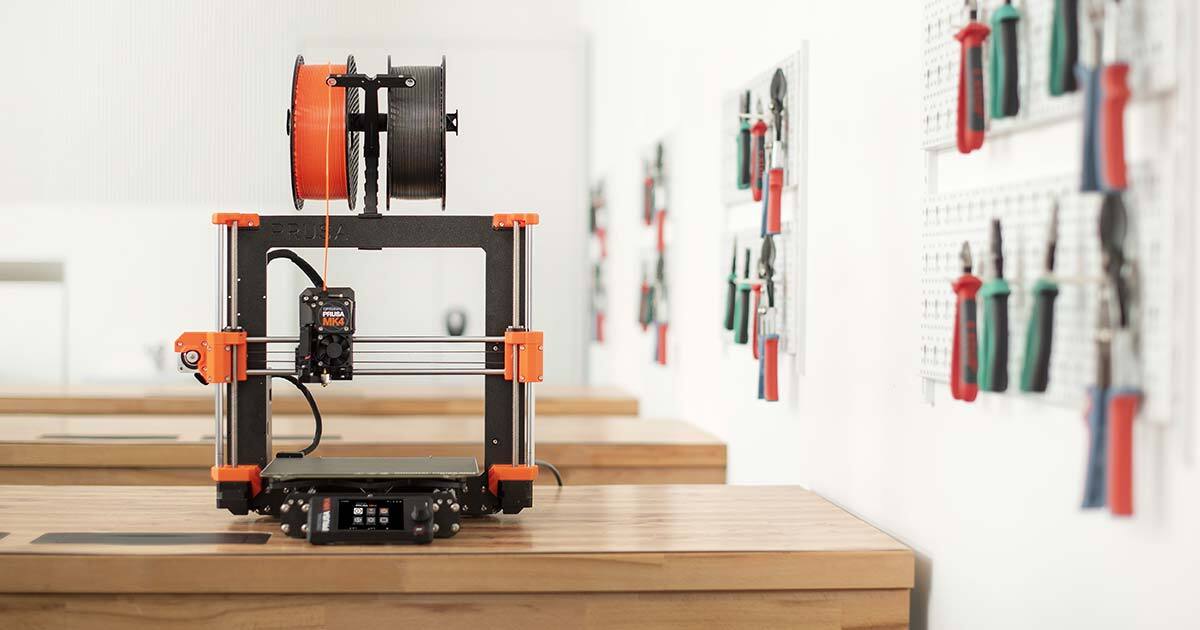
Artikel XDA tentang memblokir printer Bambu dari internet menangkap suasana yang lebih luas: printer 3D hobi telah menghabiskan bertahun-tahun bergerak menuju alur kerja terkunci cloud, dan orang-orang yang menjalankan hardware ingin mencetak tanpanya. Slicer adalah titik leverage. Pilih satu yang berjalan secara lokal, menggerakkan printer melalui jaringan atau USB, dan akun cloud menjadi opsional daripada wajib.
Kami menguji 8 aplikasi slicer 3D printing terbaik untuk desktop di 2026. Daftar ini mencakup slicer FDM open-source yang mendominasi pencetakan hobi, slicer vendor yang telah menjadi standar untuk lini hardware mereka, slicer resin untuk printer SLA dan MSLA, dan opsi berbasis browser untuk pengguna yang tidak ingin menginstal apa pun. Setiap pilihan dinilai berdasarkan kualitas slice, cakupan profil printer, peralatan kalibrasi, dan seberapa bersih program ini menangani printer yang terpasang di jaringan tanpa akun cloud.
Apa yang harus dicari dalam slicer 3D printing
Pilih slicer yang:
- Berjalan sepenuhnya secara lokal. Slicing di cloud vendor adalah langkah mundur dari cara hobby ini bekerja pada 2015. Keputusan menarik dalam cetak Anda harus terjadi pada mesin Anda.
- Memiliki profil terkini untuk printer Anda. Profil default dari pabrikan adalah titik awal Anda; perpustakaan profil slicer adalah apa yang menyelamatkan Anda dari penyelarasan ulang setiap variabel.
- Mengekspos tes kalibrasi yang benar-benar Anda jalankan — tingkat aliran, lanjut tekanan, menara suhu, menara retraksi — tanpa membuat Anda membangun G-code dengan tangan.
- Mengirim cetak melalui LAN. Pencetakan jaringan ke Klipper, OctoPrint, atau printer vendor dengan kontrol lokal harus satu klik dari layar slice.
- Membaca format file yang dibutuhkan slicer printer Anda. Standar
.gcodebersifat universal;.3mfdengan metadata semakin menjadi norma; slicer resin masih mengirimkan format biner khusus vendor.
Perbandingan cepat
| Aplikasi | Terbaik untuk | Platform | Paket gratis | Harga awal | |—–|———-|———–|—————-| | PrusaSlicer | Slicer FDM workhorse open-source | Windows, macOS, Linux | Ya, sepenuhnya | Gratis | | OrcaSlicer | Slicer yang berfokus pada kalibrasi untuk penyetel | Windows, macOS, Linux | Ya, sepenuhnya | Gratis | | Bambu Studio | Printer Bambu Lab dan seterusnya | Windows, macOS, Linux | Ya, sepenuhnya | Gratis | | Ultimaker Cura | Perpustakaan plugin dan katalog profil terbesar | Windows, macOS, Linux | Ya, sepenuhnya | Gratis | | SuperSlicer | Fork PrusaSlicer dengan kalibrasi ekstra | Windows, macOS, Linux | Ya, sepenuhnya | Gratis | | IdeaMaker | Pengguna Raise3D dan printer format besar | Windows, macOS, Linux | Ya, sepenuhnya | Gratis | | Lychee Slicer | Pencetakan resin dan MSLA | Windows, macOS | Ya, terbatas | Sekitar $60/tahun | | KIRI:MOTO | Slicer berbasis browser tanpa instalasi | Web | Ya, sepenuhnya | Gratis |
8 aplikasi slicer 3D printing terbaik untuk desktop
1. PrusaSlicer — slicer FDM workhorse open-source terbaik
PrusaSlicer dari Prusa Research adalah slicer FDM open-source yang sebagian besar slicer modern lainnya di-fork dari. Antarmuka padat tetapi terorganisir, katalog profil printer mencakup hardware Prusa serta puluhan mesin yang dipelihara komunitas, dan kualitas slice telah menjadi standar referensi selama bertahun-tahun. Ini menangani multi-material, dukungan yang larut, dukungan organik, dan fitur ketinggian lapisan variabel yang akhirnya disalin slicer lain.
Di mana kekurangannya: UI default menyembunyikan pengaturan paling berguna di balik mode ahli, yang pengguna baru tidak tahu ada. Dukungan printer Bambu Lab terbatas dibandingkan dengan Bambu Studio atau OrcaSlicer.
Platform: Windows, macOS, Linux.
Garis bawah: Default yang tepat untuk siapa pun yang tidak menggunakan printer Bambu Lab.
2. OrcaSlicer — slicer yang berfokus pada kalibrasi terbaik
OrcaSlicer adalah fork yang sekarang disaingi slicer lain. Dimulai sebagai fork Bambu Studio dengan dukungan printer yang lebih luas, mengambil dukungan organik PrusaSlicer, dan menambahkan tes kalibrasi — lanjut tekanan, tingkat aliran, menara retraksi — sebagai preset sekali klik. Hasilnya adalah slicer yang paling banyak digunakan oleh penyetel komunitas aktif di seluruh hardware vendor.
Di mana kekurangannya: Update sering berarti pengaturan bergerak antar rilis. Alur kerja kalibrasi mengasumsikan Anda memahami apa yang berubah pada setiap tes; ini adalah alat penyetel pertama.
Platform: Windows, macOS, Linux. Open-source di bawah AGPL.
Garis bawah: Pilihan yang tepat ketika Anda benar-benar menjalankan tes kalibrasi dan menginginkan mereka sebagai fitur kelas satu.
3. Bambu Studio — terbaik untuk printer Bambu Lab dan seterusnya
Bambu Studio adalah slicer vendor untuk printer Bambu Lab dan apa yang digunakan setiap pemilik Bambu secara default. Integrasi dengan AMS, alur cetak cloud, dan alat lukisan multi-warna adalah yang terbaik di kelasnya. Versi terbaru memperluas dukungan di luar hardware Bambu untuk mencakup beberapa printer komunitas, dengan cakupan profil tumbuh setiap rilis.
Di mana kekurangannya: Default pertama cloud adalah poin artikel XDA — Anda perlu keluar dari telemetri dan sinkronisasi cloud, dan mode LAN-saja memerlukan konfigurasi eksplisit di sisi printer juga. Update telah dikirim dengan regresi yang mempengaruhi printer non-Bambu.
Platform: Windows, macOS, Linux.
Garis bawah: Default untuk pemilik Bambu, dengan pengaturan LAN-saja yang menghilangkan cloud dari loop.
4. Ultimaker Cura — perpustakaan plugin dan katalog profil terbaik
Ultimaker Cura adalah slicer yang mendefinisikan era awal pencetakan 3D hobi dan masih dikirimkan dengan katalog profil terbesar dari alat apa pun di daftar ini. Pasar plugin mencakup add-on khusus printer, dukungan lanjutan, dan integrasi dengan OctoPrint, Repetier, dan host lainnya. Rilis Cura baru telah menutup celah kualitas slice dengan PrusaSlicer dan OrcaSlicer, meskipun celahnya nyata selama beberapa tahun.
Di mana kekurangannya: Desain ulang UI yang mendarat di versi terbaru membagi opini pengguna — pengguna power menemukan navigasi lebih lambat. Mesin slicing secara historis lebih lambat daripada PrusaSlicer pada hardware yang sama.
Platform: Windows, macOS, Linux.
Garis bawah: Pilihan yang tepat ketika profil printer yang Anda butuhkan ada di katalog Cura dan bukan di PrusaSlicer.
5. SuperSlicer — fork PrusaSlicer terbaik dengan kalibrasi ekstra
SuperSlicer adalah fork PrusaSlicer yang lebih tua yang mendorong dalam arah kalibrasi sebelum OrcaSlicer ada. Ini mencakup kumpulan fitur PrusaSlicer standar ditambah puluhan preset kalibrasi, pola infill yang lebih agresif, dan telinga brim yang memecahkan kelas masalah adhesi tempat tidur. Fork ini dipertahankan tetapi bergerak lebih lambat daripada OrcaSlicer.
Di mana kekurangannya: Tempo pengembangan telah melambat karena OrcaSlicer menyerap sebagian besar komunitas aktif. Beberapa fitur PrusaSlicer 2025 belum mendarat.
Platform: Windows, macOS, Linux. Open-source di bawah AGPL.
Garis bawah: Pilihan yang tepat jika Anda memiliki perpustakaan profil SuperSlicer yang ada dan belum bermigrasi ke OrcaSlicer.
6. IdeaMaker — terbaik untuk pengguna Raise3D dan printer format besar
IdeaMaker dari Raise3D adalah slicer yang paling banyak dijalankan pengguna Raise3D, dan telah berkembang menjadi opsi ketiga yang kredibel untuk printer format besar dan ekstrrusi ganda dari vendor lain. Katalog profil lebih kecil daripada PrusaSlicer atau Cura, tetapi penanganan ekstrrusi ganda dan alat manajemen farm cetak melebihi alternatif open-source.
Di mana kekurangannya: Di luar hardware Raise3D, dukungan profil memerlukan lebih banyak pekerjaan manual. Antarmuka mengikuti konvensi IdeaMaker daripada tata letak PrusaSlicer atau Cura yang dikenal sebagian besar pengguna.
Platform: Windows, macOS, Linux.
Garis bawah: Pilihan yang tepat untuk pengguna Raise3D dan siapa pun yang menjalankan farm cetak kecil dengan mesin ekstrrusi ganda.
7. Lychee Slicer — terbaik untuk pencetakan resin dan MSLA
Lychee Slicer dari Mango3D adalah slicer resin yang paling banyak digunakan pengguna printer SLA dan MSLA aktif. Generasi dukungan lebih konservatif tentang kegagalan adhesi daripada slicer vendor, alat lubang lebih kuat, dan katalog printer yang didukung mencakup Elegoo, Anycubic, Phrozen, dan sebagian besar hardware MSLA konsumen lainnya. Tingkat gratis mencakup sebagian besar pengguna; tingkat berbayar membuka perbaikan model, lubang lanjutan, dan slicing batch.
Di mana kekurangannya: FDM bukan fokusnya — untuk printer filamen, tetap di slicer FDM di atas. Tingkat berbayar adalah langganan daripada pembelian sekali kali.
Platform: Windows, macOS.
Garis bawah: Pilihan yang tepat untuk printer resin ketika slicer vendor terus gagal dalam penempatan dukungan.
8. KIRI:MOTO — slicer berbasis browser tanpa instalasi terbaik
KIRI:MOTO adalah slicer yang berjalan di tab browser tanpa instalasi dan tanpa akun. Buka URL, lepas STL, konfigurasi printer, dan slice. Ini menangani FDM dan alur kerja CNC dan laser dasar dari alat yang sama. Kasus penggunaan yang tepat adalah “teman ingin mencetak satu bagian dan tidak ingin menginstal apa pun.”
Di mana kekurangannya: Kualitas slice dan katalog profil tidak cocok dengan slicer desktop di atas. Tab browser bukan tempat Anda ingin melakukan penyetelan serius.
Platform: Browser modern apa pun — Windows, macOS, Linux, Chromebook.
Garis bawah: Pilihan yang tepat untuk cetak sekali jadi pada laptop pinjaman atau Chromebook tanpa slicer terpasang.
Cara memilih yang tepat
Untuk printer Prusa atau FDM komunitas yang khas, instal PrusaSlicer dan mulai dari sana. Jika Anda adalah penyetel aktif yang menjalankan tes kalibrasi, instal OrcaSlicer berdampingan — mereka hidup berdampingan dengan profil terpisah. Untuk hardware Bambu Lab, Bambu Studio adalah default; untuk pengaturan LAN-saja, konfigurasikan itu dan matikan bit cloud.
Jika printer Anda tidak ada di katalog PrusaSlicer tetapi ada di katalog Cura, beralih. Jika Anda berada di printer Raise3D atau menjalankan farm cetak kecil, IdeaMaker adalah pilihan mudah. Untuk resin, Lychee Slicer telah memperoleh tempatnya di atas slicer vendor. Untuk cetak sekali jadi pada mesin pinjaman, KIRI:MOTO adalah jawaban yang tepat.
Tetap gunakan slicer vendor yang dikirimkan dengan printer Anda selama sebulan pertama. Beralih hanya ketika Anda mencapai keterbatasan spesifik — slicing lambat, kalibrasi yang hilang, dukungan lemah, atau persyaratan cloud yang ingin Anda hapus.
Pertanyaan yang Sering Diajukan
Apa slicer 3D printing gratis terbaik?
Untuk printer FDM, PrusaSlicer adalah slicer 3D printing gratis terbaik untuk sebagian besar pengguna, dengan OrcaSlicer pilihan yang lebih baik untuk penyetel aktif. Ultimaker Cura adalah pilihan gratis yang tepat ketika profil printer yang Anda butuhkan ada di katalog Cura. Ketiga menangani alur kerja FDM standar tanpa batasan penggunaan gratis.
Apakah aman menggunakan Bambu Studio tanpa cloud?
Ya, Bambu Studio mendukung mode LAN-saja di printer Bambu Lab. Pengaturan memerlukan pengaktifan LAN-saja di printer itu sendiri melalui menu layar dan konfigurasi Bambu Studio untuk mengirim cetak melalui jaringan lokal. Telemetri dan sinkronisasi cloud dapat dinonaktifkan di pengaturan slicer. Artikel XDA tentang memblokir printer Bambu dari internet menggambarkan alur kerja yang sama.
Bisakah saya menggunakan satu slicer untuk printer FDM dan resin?
Secara praktis, tidak — logika slicing untuk printer filamen FDM dan printer resin SLA atau MSLA secara fundamental berbeda. Gunakan slicer resin khusus (Lychee Slicer, Chitubox, atau slicer vendor printer Anda) untuk resin dan slicer FDM khusus untuk filamen.
Apa perbedaan antara OrcaSlicer dan Bambu Studio?
OrcaSlicer dimulai sebagai fork Bambu Studio yang menambahkan dukungan untuk lebih banyak printer dan fitur kalibrasi. Bambu Studio berfokus pada hardware Bambu Lab dan fitur cloud yang terikat padanya. OrcaSlicer mencakup berbagai printer yang lebih luas dan adalah pilihan yang lebih baik jika Anda memiliki printer Bambu dan non-Bambu di workshop Anda.
Apakah saya perlu membayar slicer 3D printing?
Tidak, setiap slicer FDM utama gratis, termasuk PrusaSlicer, OrcaSlicer, Cura, Bambu Studio, dan SuperSlicer. Alat berbayar adalah Lychee Slicer (langganan untuk fitur resin lanjutan) dan beberapa alat manajemen cetak-farm. Untuk pencetakan hobi khas, Anda dapat tetap menggunakan slicer gratis untuk selamanya.