
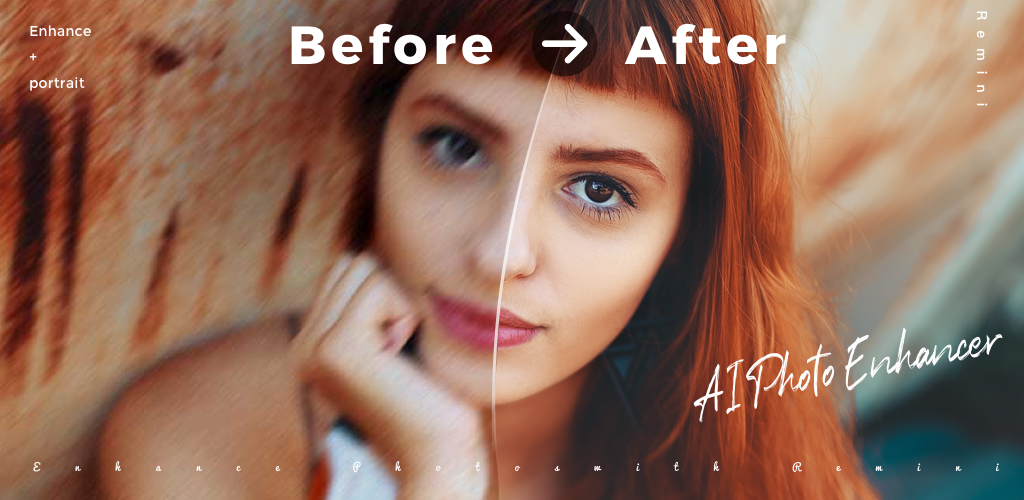
Ray tracing memang sudah lama dipakai sebagai bahan promosi, tetapi perubahan nyata pada visual game di ponsel datang dari upscaling AI. Logika yang sama kini menggerakkan aplikasi foto di Android: model cerdas bisa mengubah snapshot keluarga 1MP jadi gambar yang layak dicetak, atau menyelamatkan crop buram dari frame video. Ponsel menangani proses di perangkat, cloud mengurus sisanya, dan hasilnya siap dipakai dalam hitungan detik.
Kami menguji enam aplikasi upscaling gambar AI yang benar-benar kami rekomendasikan. Daftar ini memadukan editor foto generalis dengan peningkat AI khusus, pilihan gratis dengan alat berbayar untuk pengguna power, dan satu aplikasi yang terus kami pakai karena pratinjalunya jujur.
Yang perlu diperhatikan dalam aplikasi upscaling AI
Beberapa hal penting sebelum Anda memilih:
- Berjalan di perangkat atau di cloud? Di perangkat lebih cepat offline; cloud menangani pekerjaan lebih besar.
- Apakah detail dipertahankan atau dihalusinasi? Beberapa aplikasi menciptakan wajah yang tidak pernah ada di sumber.
- Apakah tingkat gratis memungkinkan menyimpan hasil resolusi tinggi atau menurunkannya?
- Apakah ekspor kehilangan EXIF dan diberi watermark? Beberapa aplikasi menambahkan watermark pada paket gratis.
- Apakah mendukung unggahan batch? Alur satu per satu runtuh saat ratusan foto.
Perbandingan singkat
| Aplikasi | Terbaik untuk | Platform | Paket gratis | Tingkat berbayar | Watermark |
|---|---|---|---|---|---|
| Remini | Wajah dan potret | Android, iOS | Ya (terbatas) | Langganan Premium | Paket gratis memberi watermark pada hasil |
| Snapseed | Penajaman manual | Android, iOS | Ya | Tidak ada | Tidak |
| PicsArt | Semua dalam satu aplikasi | Android, iOS, web | Ya | Langganan Gold | Paket gratis memberi watermark pada alat AI |
| Adobe Photoshop Express | Edit aman untuk brand | Android, iOS | Ya | Langganan Premium | Tidak |
| HitPaw Photo Enhancer | Dokumen dan foto lama | Android, iOS, desktop | Uji coba gratis terbatas | Langganan Premium | Uji coba diberi watermark |
| Pixelup | Upscaling sekali ketuk | Android | Ya (terbatas) | Langganan Premium | Paket gratis memberi watermark |
Aplikasinya
1. Remini — Terbaik untuk potret
Remini adalah aplikasi yang membawa restorasi potret AI ke sebagian besar ponsel. Pipeline face-detection-first menonjolkan detail mata, rambut, dan kulit tanpa finish plastik yang dibawa generasi awal peningkat. Pembaruan terbaru menambahkan peningkat video, generator “AI photos” (yang kami abaikan untuk uji upscaling), dan pemrosesan batch lebih cepat.
Kekurangan: paket gratis memberi watermark pada hasil dan membatasi peningkatan harian. Model terkadang menciptakan kerutan atau perhiasan pada sumber resolusi rendah.
Harga:
- Gratis: peningkatan harian terbatas dengan watermark
- Berbayar: langganan mingguan atau tahunan menghapus watermark dan batas
Platform: Android, iOS
Kesimpulan: pilihan tepat untuk memulihkan potret keluarga dan KTP lama.
2. Snapseed — Terbaik untuk penajaman manual
Snapseed adalah editor foto gratis tanpa iklan dari Google. Alat Details memberi slider terpisah untuk struktur dan penajaman, yang paling mendekati upscale manual di ponsel tanpa langganan. Dipadukan dengan alat Selective, Anda bisa menajamkan mata dan wajah tanpa mendorong noise ke langit di belakangnya.
Kekurangan: tidak ada super-resolution berbasis pembelajaran. Jika sumber sangat terkompresi, alat manual tidak bisa mensintesis detail yang memang tidak pernah ada.
Harga:
- Gratis: semua fitur, tanpa iklan, tanpa langganan
Platform: Android, iOS
Kesimpulan: editor gratis yang seharusnya dimiliki setiap pemilik Pixel dan iPhone.
3. PicsArt — Terbaik serba ada
PicsArt memadukan alat AI (super-resolution, penghapusan latar, generative fill) dengan editing tradisional dalam satu paket. Tingkat gratis mencakup kuota harian peningkatan AI, build iOS dan Android berbagi status akun, dan editor yang ramah Pixel menangani file HEIC dan DNG selain JPEG dan PNG.
Kekurangan: tingkat gratis memberi watermark pada alat AI dan membatasi resolusi ekspor. Aliran notifikasi mendorong fitur editorial lebih agresif daripada kebanyakan editor.
Harga:
- Gratis: kuota AI harian dengan watermark pada paket gratis
- Berbayar: langganan PicsArt Gold untuk alat AI tanpa batas dan ekspor resolusi lebih tinggi
Platform: Android, iOS, web
Kesimpulan: pilihan tepat jika Anda ingin upscaling sekaligus editing dalam satu aplikasi.
4. Adobe Photoshop Express — Terbaik untuk edit aman brand
Adobe Photoshop Express terhubung ke model Sensei Adobe untuk super-resolution dan pengurangan noise. Output mempertahankan EXIF, membiarkan asli tidak tersentuh, dan sinkron lewat Creative Cloud jika Anda memilikinya. File HDR Pixel dan iPhone diimpor dengan bersih, penting saat kebanyakan aplikasi lain memaksa ke JPEG.
Kekurangan: tingkat gratis menampilkan iklan dan mengunci ekspor resolusi tertinggi di balik langganan Premium. Alat AI bukan yang terkuat di pasar; model premium Adobe ada di Lightroom mobile.
Harga:
- Gratis: sebagian besar edit dengan iklan
- Berbayar: langganan Premium atau bundel dengan Creative Cloud
Platform: Android, iOS
Kesimpulan: pilihan yang dapat diprediksi bagi siapa pun yang sudah hidup di Creative Cloud.
5. HitPaw Photo Enhancer — Terbaik untuk dokumen dan foto lama
HitPaw Photo Enhancer adalah peningkat AI khusus yang paling fleksibel. Daftar model memungkinkan Anda memilih model wajah, model umum, model hewan, atau model penghapus goresan per gambar, jarang ada di aplikasi mobile. Sangat baik menangani scan cahaya redup dan cetakan pudar, dengan model dokumen yang mempertahankan geometri garis yang aplikasi lain bulatkan.
Kekurangan: produk desktop lebih kuat; ukuran batch build mobile lebih kecil. Uji coba gratis singkat, dan paket berbayar condong ke langganan tahunan.
Harga:
- Gratis: kredit uji coba terbatas
- Berbayar: tingkat bulanan, tahunan, atau seumur hidup
Platform: Android, iOS, Windows, macOS
Kesimpulan: alat tepat jika Anda punya arsip nyata untuk dipulihkan.
6. Pixelup — Terbaik untuk upscaling sekali ketuk
Pixelup menyederhanakan alur kerja ke satu tombol. Masukkan foto, pilih mode 2x, 4x, atau prioritas wajah, lalu tunggu. Hasil diunduh pada resolusi yang dipilih, dengan asli tetap utuh. Cocok untuk pengguna kasual yang tidak ingin dashboard.
Kekurangan: paket gratis memberi watermark. Model kompeten tetapi bukan yang terbaik untuk potret; untuk itu, Remini pilihan lebih baik.
Harga:
- Gratis: peningkatan harian terbatas dengan watermark
- Berbayar: langganan mingguan atau tahunan
Platform: Android
Kesimpulan: perbaikan cepat saat Anda tidak ingin memikirkan pilihan model.
Cara memilih yang tepat
Pasang Remini jika subjeknya orang dan Anda punya anggaran untuk seminggu atau sebulan berbayar. Ini restorator potret terkuat dalam daftar.
Pasang Snapseed jika Anda ingin editor gratis tanpa akun yang menajamkan dengan bersih. Padukan dengan salah satu aplikasi di atas; Snapseed adalah alat finishing.
Pasang PicsArt jika Anda ingin satu aplikasi untuk semua pekerjaan foto dan bisa menerima langganan. Pasang Adobe Photoshop Express jika Anda sudah membayar Creative Cloud atau butuh output aman untuk brand.
Pasang HitPaw Photo Enhancer jika Anda punya tumpukan cetakan lama, scan dokumen, atau foto cahaya redup untuk dipulihkan. Pemilih model per gambar adalah kekuatan utamanya. Pasang Pixelup jika Anda ingin upscaler tap-and-go paling sederhana tanpa fitur pro.
Stack gratis praktis: Snapseed untuk kontrol halus plus kuota gratis Remini untuk upscaling potret hari itu, dengan salah satu aplikasi berbayar disisihkan untuk pekerjaan batch.
Pertanyaan yang sering diajukan
Apakah upscaler AI aman untuk foto pribadi?
Kebanyakan mengirim gambar ke server cloud untuk diproses. Baca kebijakan privasi setiap aplikasi sebelum mengunggah. Snapseed berjalan lokal dan tidak pernah mengunggah. Remini, PicsArt, Adobe, HitPaw, dan Pixelup semua memproses di cloud.
Bisakah aplikasi ini meningkatkan frame video?
Remini dan HitPaw keduanya menawarkan peningkat video terpisah. Aplikasi lain fokus pada foto diam.
Apakah upscaling AI bekerja pada screenshot?
Ya, tetapi hasilnya bergantung pada sumber. Screenshot dengan teks kecil biasanya kurang bagus karena model menciptakan detail pada huruf yang tidak tajam.
Mengapa foto yang di-upscale terlihat plastik?
Model dasar mencoba over-smooth wajah. Coba kekuatan peningkatan lebih rendah, beralih ke mode prioritas wajah jika tersedia, atau padukan alat AI dengan alat Selective Snapseed untuk mengurangi efek.
Apakah aplikasi ini bisa dipakai tanpa akun?
Snapseed bekerja sepenuhnya anonim. Yang lain membutuhkan login akun untuk pemrosesan cloud, bahkan pada tingkat gratis.

